Share this page with your team when a device shows Offline, names do not appear,
or punches exist but the daily report looks empty. Most cases are setup — not a software failure.
1. Device shows Offline in software
Check these three points before assuming the machine is broken.
Network — Is the device connected by Ethernet or Wi‑Fi?
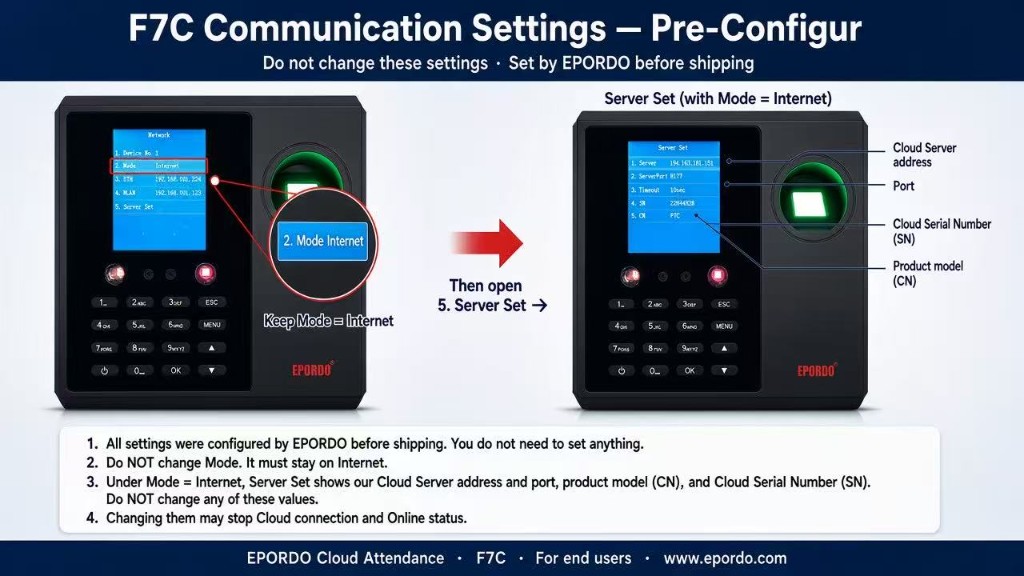
Cloud server on the device — Menu: Mode = Internet → Server Set. Confirm EPORDO cloud:
Server IP: 194.163.181.151
Port: 8177
Keep Mode = Internet. Do not change Server / Port / SN / CN (set by EPORDO before shipping).
Reboot — Power off/on, wait 1–2 minutes, then check Online again in Device manage.
Important
Changing Mode or Server Set values can stop Cloud connection. Only change them if EPORDO support asks you to.
F7C — Communication settings (do not change)
F7C · Mode = Internet · Server 194.163.181.151 · Port 8177
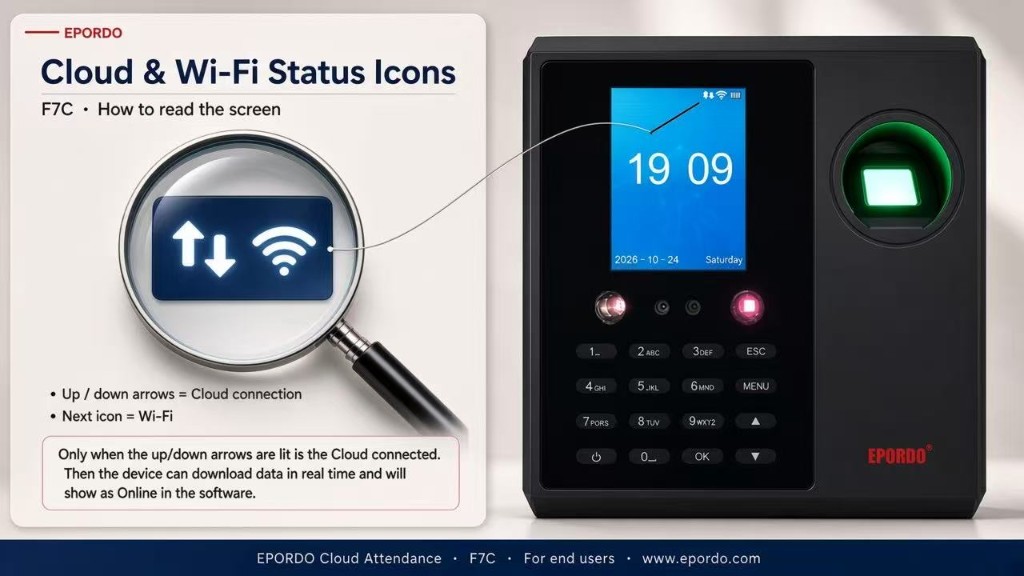
F7C — How to read Cloud / Wi‑Fi icons
Only when the up / down arrows are lit is the Cloud connected. Then the device can sync in real time and show as Online in software.
F7C · Up/down arrows = Cloud · Next icon = Wi‑Fi
2. Departments — who can use which machine
People and machines connect by department. Correct department setup enables
automatic real-time sync (staff download to devices; punches upload to cloud).
Every employee must have a department.
Every device must be linked to one or more departments.
Sales staff use machines that include the Sales department — and so on.
Scenario
How to set
Small company — one shared machine
On that device, select all company departments.
One machine per department
Select only the department that uses that machine (e.g. Sales machine → Sales).
Manager / boss needs to punch
Create an Admin department, assign the manager to Admin,
then add Admin to one machine or every machine they should use.
Advantage for owners
With an Admin department, a boss can punch on any authorized terminal without joining Sales or Factory.
3. We punched — why is there no report / payroll?
This is one of the most common questions. In most cases the punch does exist
in Attendance records, but it was outside the valid punch window,
so it does not count in daily reports or payroll.
Shift time vs Punch window
Term
Meaning
Example
Shift time
Official work hours for late / early / hours calculation
09:00 – 18:00
Punch window
Valid time range when IN / OUT counts for reports & payroll
Default ±60 min → IN 08:00–10:00 · OUT 17:00–19:00
Software default (editable)
Default: 60 minutes before and 60 minutes after start / end.
So each clock-in and clock-out window is 2 hours.
You can change it — e.g. 120 + 120 minutes → 4 hours each.
Tell every employee
Only punches inside the valid window are calculated into attendance reports and salary.
Outside the window → you may still see the raw punch in Attendance records, but the report can look empty or incomplete.
This is expected behavior — not a software bug.
4. F7C — names download from Cloud (Browse)
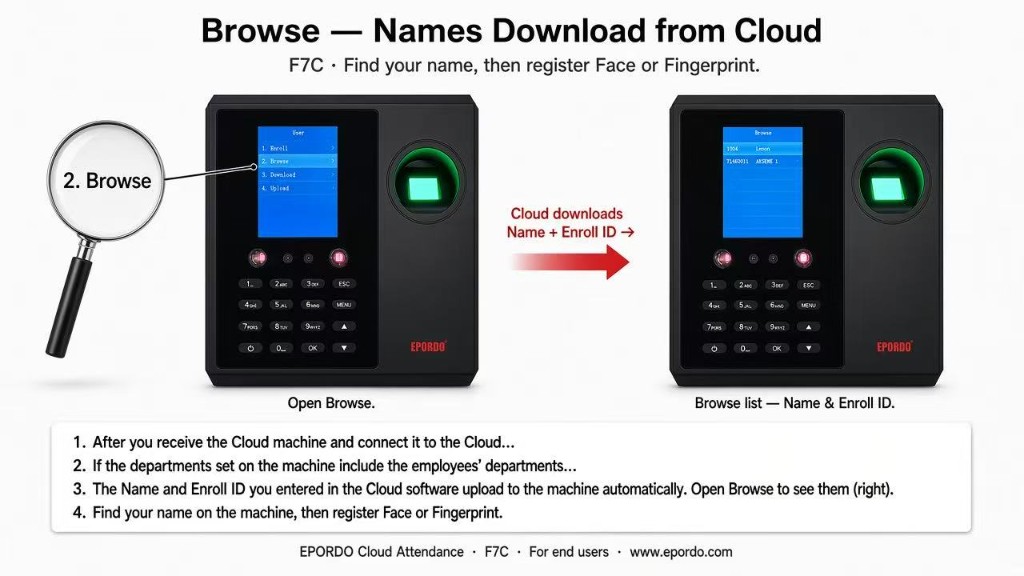
After the device is online and departments match, Name + Enroll ID download automatically.
Open Browse to find your name, then register Face or Fingerprint on the machine.
Connect the Cloud machine and keep it Online.
Make sure the device departments include each employee’s department.
Open User → Browse to see Name & Enroll ID.
Find your name, then enroll Face / Fingerprint.
F7C · Browse — Names download from Cloud
Golden rule
Always create employees in the cloud software first. Use the device only to enroll biometrics after the name appears in Browse.