EPORDO Cloud Attendance
Overtime Rules — Customer Guide
This guide explains how to enable overtime in Depart. Shift Assign and how the system calculates overtime hours. One page for setup. One page for calculation.
Menu path: Depart. Shift Assign → Time Period → Advanced Option
1. Overtime Rule in One Sentence
Overtime is counted only when “Overtime or not” is enabled,
the employee punches within the valid time window,
and arrives more than 30 minutes early or leaves more than 30 minutes late.
If overtime qualifies, the full early/late duration is counted as overtime.
| Type | Condition | Overtime Hours |
|---|---|---|
| Early Overtime | Punch-in time is more than 30 minutes before Start Work | Start Work − Punch-in time |
| Late Overtime | Punch-out time is more than 30 minutes after End Work | Punch-out time − End Work |
2. How to Set Overtime (4 Steps)
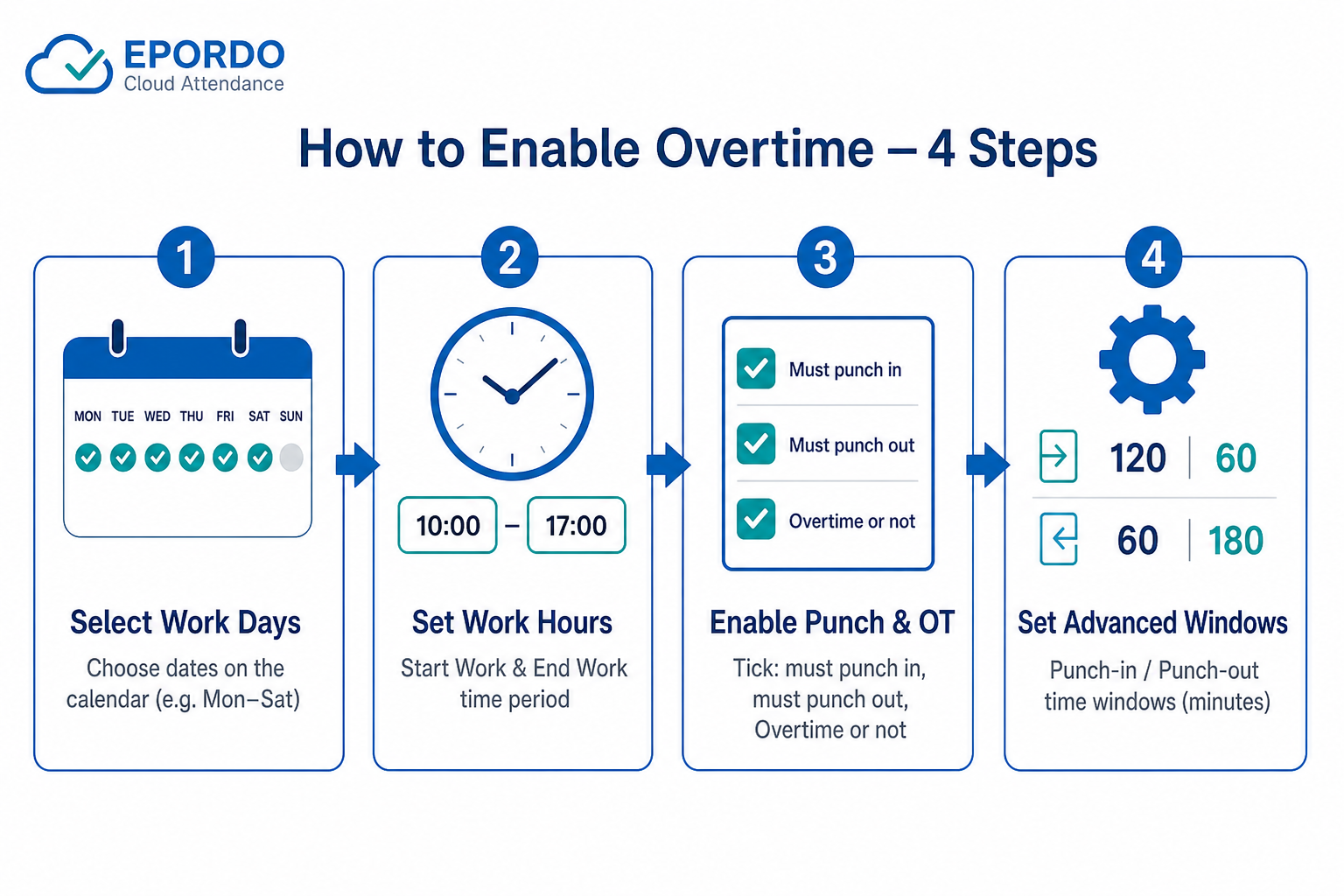
Figure A — Setup overview
1
Select work days
On the calendar, tick the days that use this shift (example: Monday–Saturday).
2
Set work hours
Enter Start Work and End Work (example: 10:00 – 17:00). Workday = one day.
3
Enable punch & OT
Tick: must punch in, must punch out, and Overtime or not.
4
Set Advanced Option
Fill the four minute fields for punch-in / punch-out windows (see table below).
Important: If Overtime or not is not checked, the system will not calculate overtime,
even if the employee arrives early or leaves late.
3. What the Advanced Option Numbers Mean
These four numbers define the valid punch window (minutes before / after the scheduled time). Punches outside this window are invalid for this period.
| Field | Example Value | Meaning | With Shift 10:00–17:00 |
|---|---|---|---|
| Start work — left | 120 | Minutes allowed before Start Work for punch-in | Earliest punch-in: 08:00 |
| Start work — right | 60 | Minutes allowed after Start Work for punch-in | Latest punch-in: 11:00 |
| End Work — left | 60 | Minutes allowed before End Work for punch-out | Earliest punch-out: 16:00 |
| End Work — right | 180 | Minutes allowed after End Work for punch-out | Latest punch-out: 20:00 |
Punch-in window
08:00 — 11:00
120 min before + 60 min after Start Work 10:00
08:00 — 11:00
120 min before + 60 min after Start Work 10:00
Punch-out window
16:00 — 20:00
60 min before + 180 min after End Work 17:00
16:00 — 20:00
60 min before + 180 min after End Work 17:00
4. How EPORDO Calculates Overtime
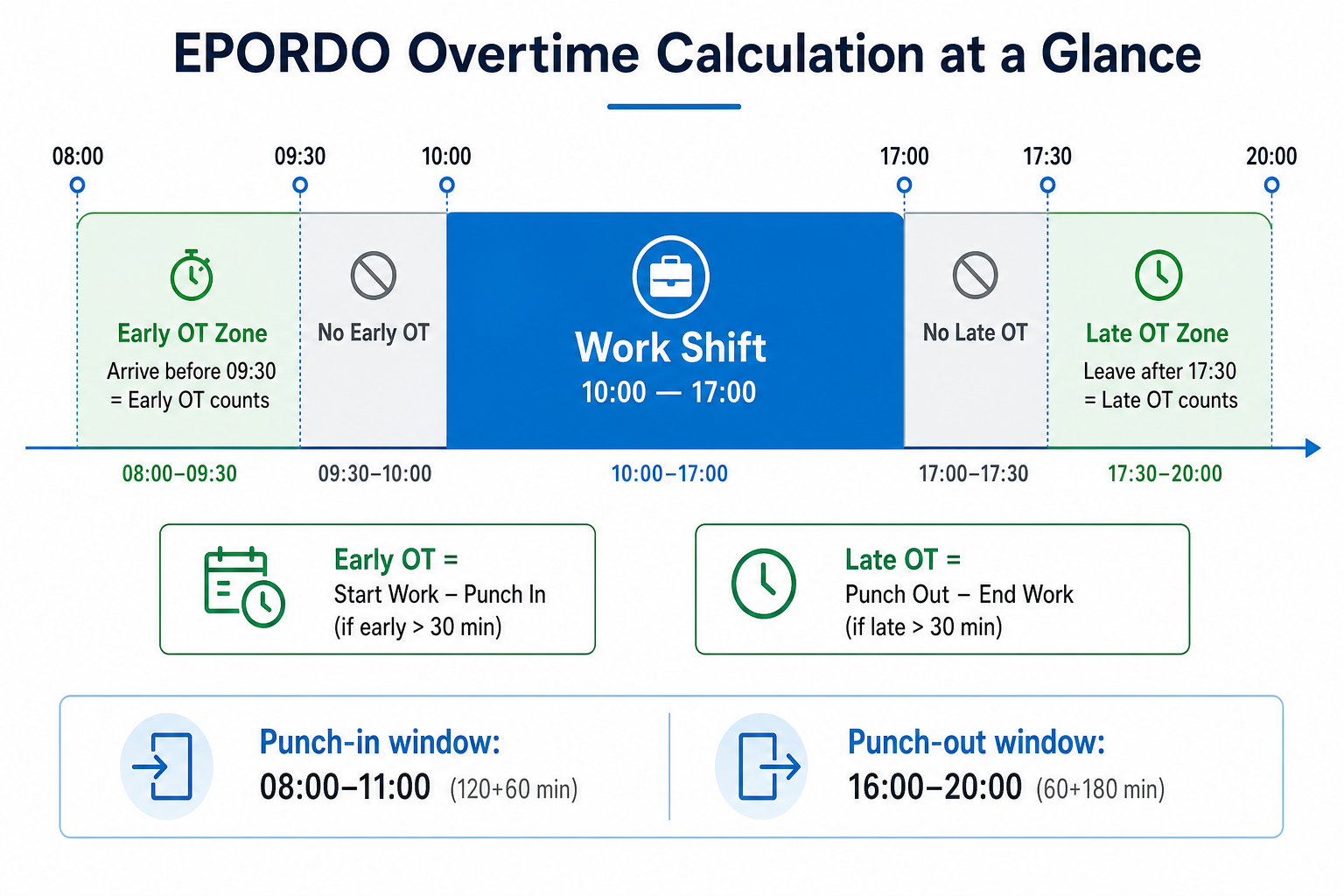
Figure B — Overtime zones vs. work shift (example: 10:00–17:00)
Early Overtime
IF (Start Work − Punch In) > 30 minutes
THEN Early OT = Start Work − Punch In
ELSE Early OT = 0
- Threshold line for 10:00 start = 09:30
- Arrive at/after 09:30 → No early OT
- Arrive before 09:30 → Early OT counted
Late Overtime
IF (Punch Out − End Work) > 30 minutes
THEN Late OT = Punch Out − End Work
ELSE Late OT = 0
- Threshold line for 17:00 end = 17:30
- Leave at/before 17:30 → No late OT
- Leave after 17:30 → Late OT counted
Daily Overtime Total = Early OT + Late OT
5. Worked Examples (Shift 10:00 – 17:00)
A. Morning / Early Overtime
| Punch-in | Minutes early | > 30 min? | Result | Overtime |
|---|---|---|---|---|
| 08:20 | 100 min (1h 40m) | YES | Before 09:30 → qualifies | 1 hour 40 minutes |
| 09:35 | 25 min | NO | After 09:30 → does not qualify | 0 (No Overtime) |
| 09:00 | 60 min | YES | Before 09:30 → qualifies | 1 hour |
| 09:30 | 30 min | NO (> 30 required) | Exactly 30 min → does not qualify | 0 (No Overtime) |
B. Afternoon / Late Overtime
| Punch-out | Minutes late | > 30 min? | Result | Overtime |
|---|---|---|---|---|
| 18:20 | 80 min (1h 20m) | YES | After 17:30 → qualifies | 1 hour 20 minutes |
| 17:25 | 25 min | NO | Before 17:30 → does not qualify | 0 (No Overtime) |
| 19:00 | 120 min | YES | After 17:30 → qualifies | 2 hours |
| 17:30 | 30 min | NO (> 30 required) | Exactly 30 min → does not qualify | 0 (No Overtime) |
C. Full Day Combined Example
| Punch-in | Punch-out | Early OT | Late OT | Total OT |
|---|---|---|---|---|
| 08:20 | 18:20 | 1h 40m | 1h 20m | 3 hours |
| 09:35 | 17:25 | 0 | 0 | 0 |
| 08:20 | 17:25 | 1h 40m | 0 | 1h 40m |
6. Customer Checklist Before Go-Live
| # | Check Item | Why it matters |
|---|---|---|
| 1 | Work days selected on calendar | Rules apply only to selected days |
| 2 | Start Work / End Work set correctly | All OT is measured from these times |
| 3 | must punch in + must punch out enabled | System needs both punches to calculate |
| 4 | Overtime or not enabled | Without this, OT is never calculated |
| 5 | Advanced Option windows large enough | If punch is outside the window, it is invalid |
| 6 | Click Save | Settings take effect only after saving |
7. Quick FAQ
| Question | Answer |
|---|---|
| Employee arrives 20 minutes early. Is it OT? | No. |
| Employee arrives 40 minutes early. Is it OT? | Yes — full 40 minutes count as Early OT. |
| Employee leaves 20 minutes late. Is it OT? | No. |
| Employee leaves 45 minutes late. Is it OT? | Yes — full 45 minutes count as Late OT. |
| What if “Overtime or not” is unchecked? | No overtime is calculated. |
| What if punch is outside the Advanced Option window? | Punch is outside the valid period and will not be used for that time period. |