EPORDO Cloud Attendance
Employee Login Account & Password — Where to set them / How to use them
Self-service guide for overseas customers
1. Two login portals
EPORDO Cloud Attendance has two different websites. Please do not mix them.
For adding employees, setting schedules, viewing reports
For personal attendance check / employee self-service
2. Key rule (please remember)
The employee login account and password are created by the manager in the Management Portal when adding or editing employee information.
Employees do not register by themselves.
Employees do not register by themselves.
Employee User Account
= mobile
The phone number filled in employee info
+
Employee Password
= login password
The “login password” field in employee info
3. Step-by-step: where to set / find them
1
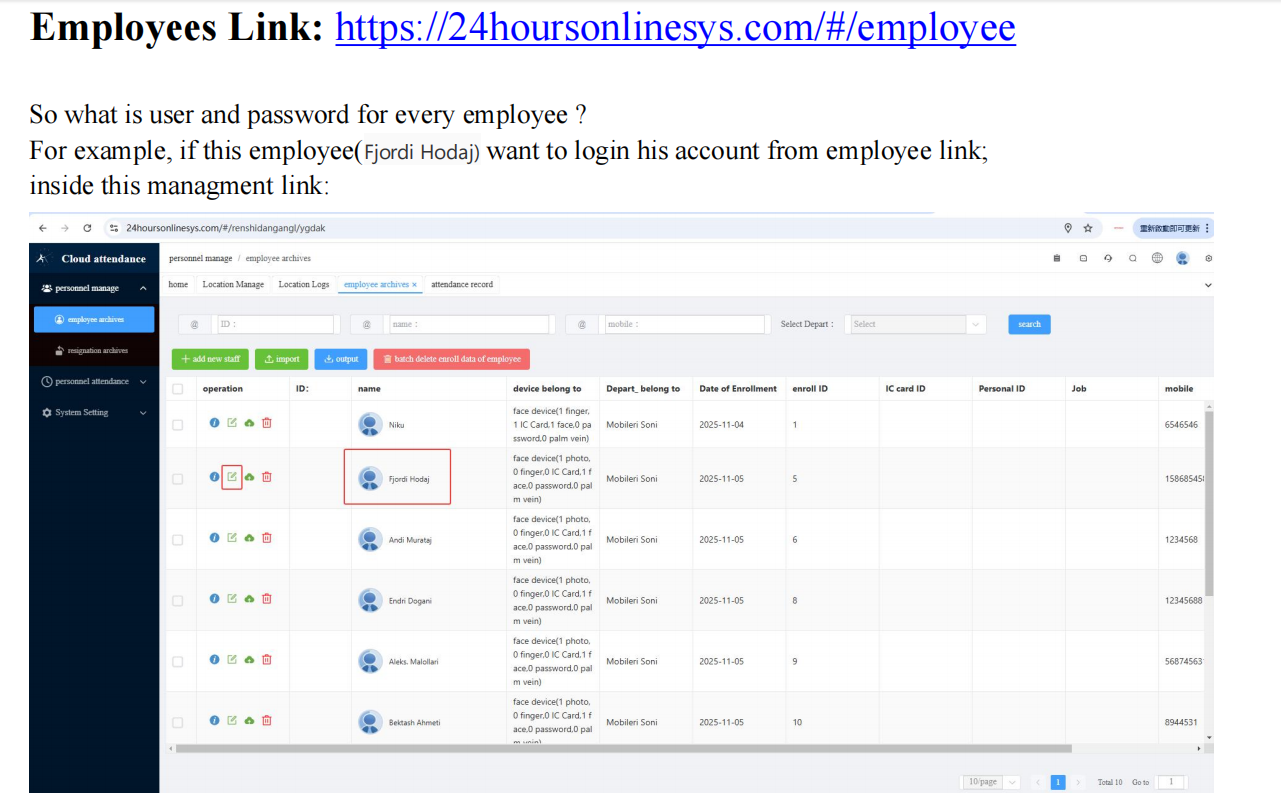
Open employee list in Management Portal
Log in to the Management Portal → left menu Personnel manage → employee archives.
Find the employee, then click the Edit icon in the operation column.
Screenshot — Step 1
2
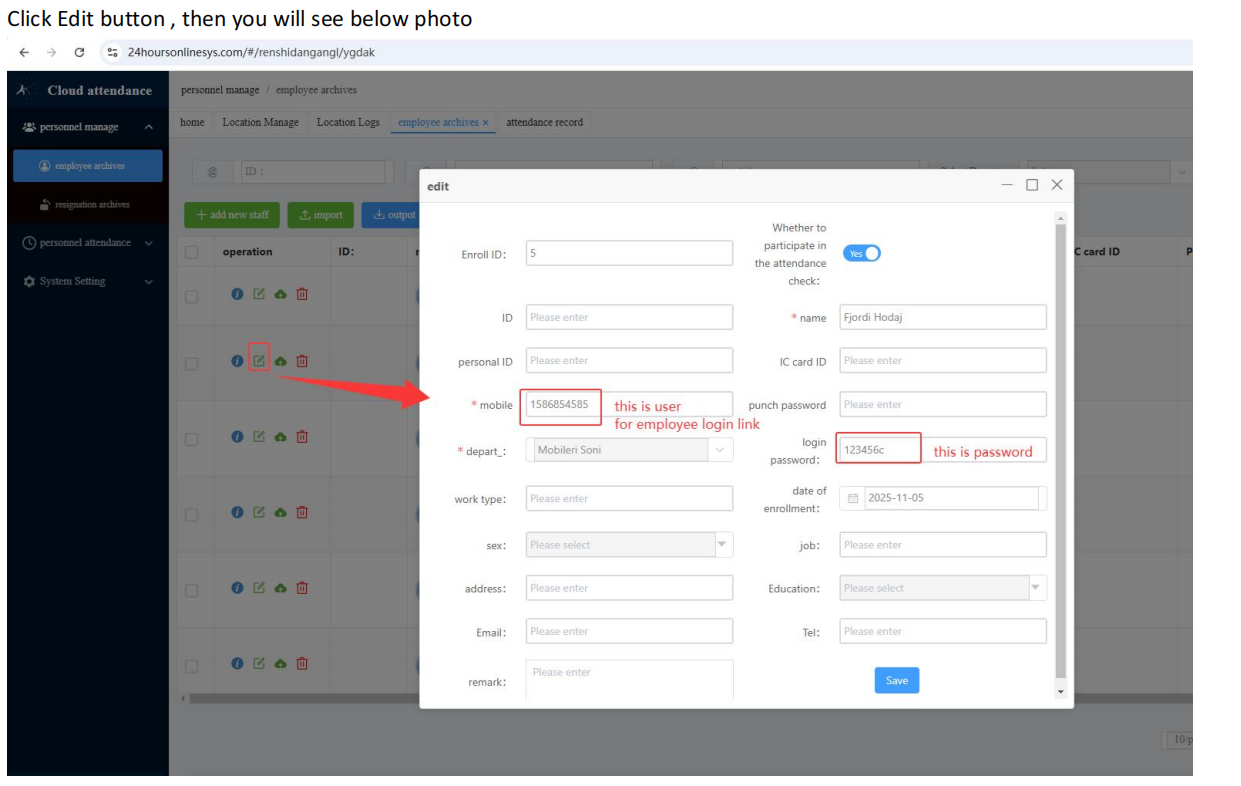
Set / check Account and Password in the Edit window
In the edit (or add) form:
| Field in system | mobile |
Employee User Account for Employee Portal |
|---|---|---|
| Field in system | login password |
Employee Password for Employee Portal |
Click Save after any change.
Screenshot — Step 2
3
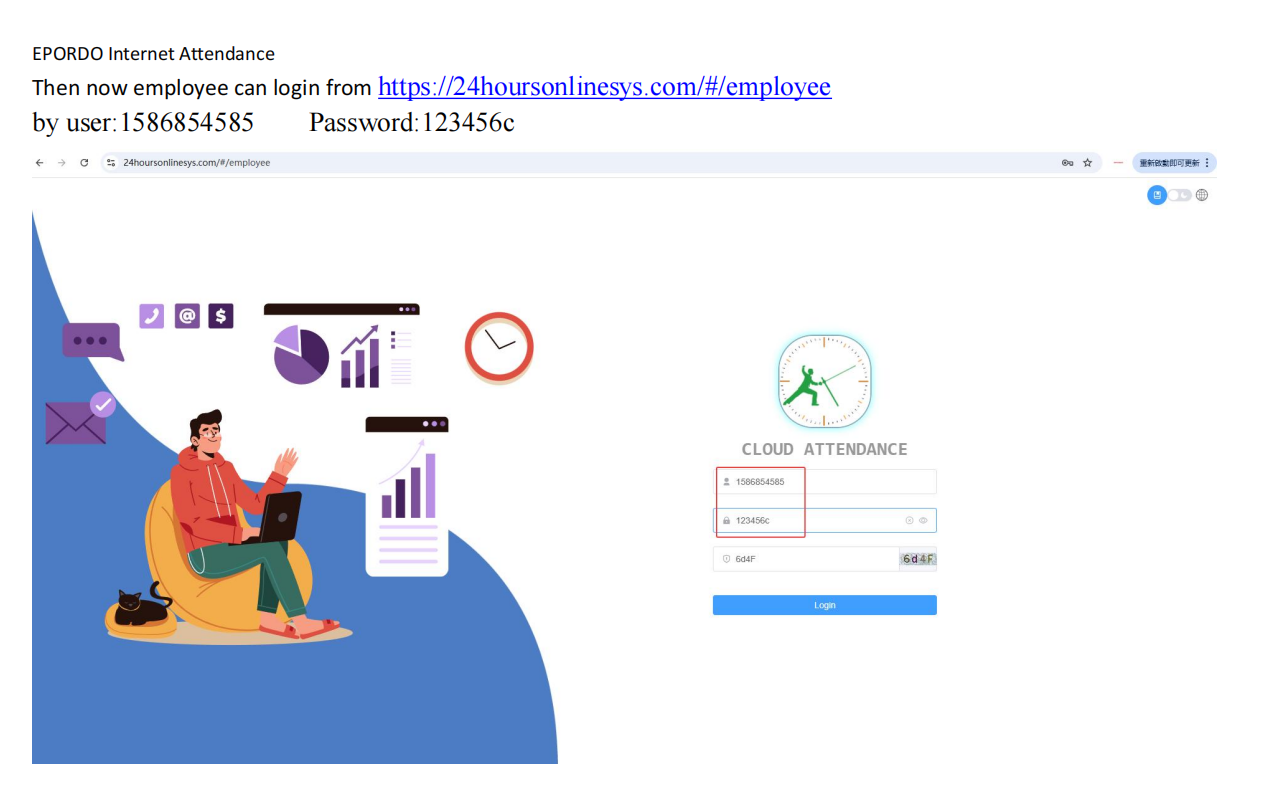
Employee logs in on the Employee Portal
Open: https://24houronlinesys.com/#/employee
Enter the same mobile as User Account and the same login password as Password, then enter the verification code and click Login.
Screenshot — Step 3
4. Example
| Employee name | Fjordi Hodaj |
|---|---|
| User Account | 1586854585 (from field: mobile) |
| Password | 123456c (from field: login password) |
| Login URL | https://24houronlinesys.com/#/employee |
5. Quick summary
| What | Where | Field / Link |
|---|---|---|
| Employee Account | Management Portal → employee archives → Edit / Add | mobile |
| Employee Password | Management Portal → employee archives → Edit / Add | login password |
| Employee Login Page | Employee Portal | https://24houronlinesys.com/#/employee |
| Manager Login Page | Management Portal | https://24houronlinesys.com/#/login |