Professional EditionKeep Screenshots for Reference
This manual guides hotel staff through software setup, card issuance, and lock initialization.
After receiving your hotel locks, you only need the Authorized Card and Guest Room Cards—
no Time Card or Setting Card is required.
Address: Room 411, GuoShengJinXingLianChuangShiDai, LongHua District, Shenzhen, China
Document Year: 2025 | Software Version: V7.1
Video Tutorials: https://www.youtube.com/playlist?list=PLJgAedFwffBA-v8neYu9ebQ7yIRI0tr8a
Shenzhen EPORDO Co., LtdHotel Lock Software V7.1 — International Manual
1. Critical Notice — Authorized Card Operations
Please read this section carefully before installing or programming any lock.
Incorrect use of the Authorized Card is the most common cause of initialization problems.
Your shipment typically includes hotel locks, an encoder, and cards:
Item
Description
Authorized Card (1 pc)
Used to initialize locks and to clear lock data. Keep this card safe.
Blank White Cards
Issue as Guest Room Cards, Master Cards, Building Cards, Floor Cards, etc.
Encoder (Card Reader)
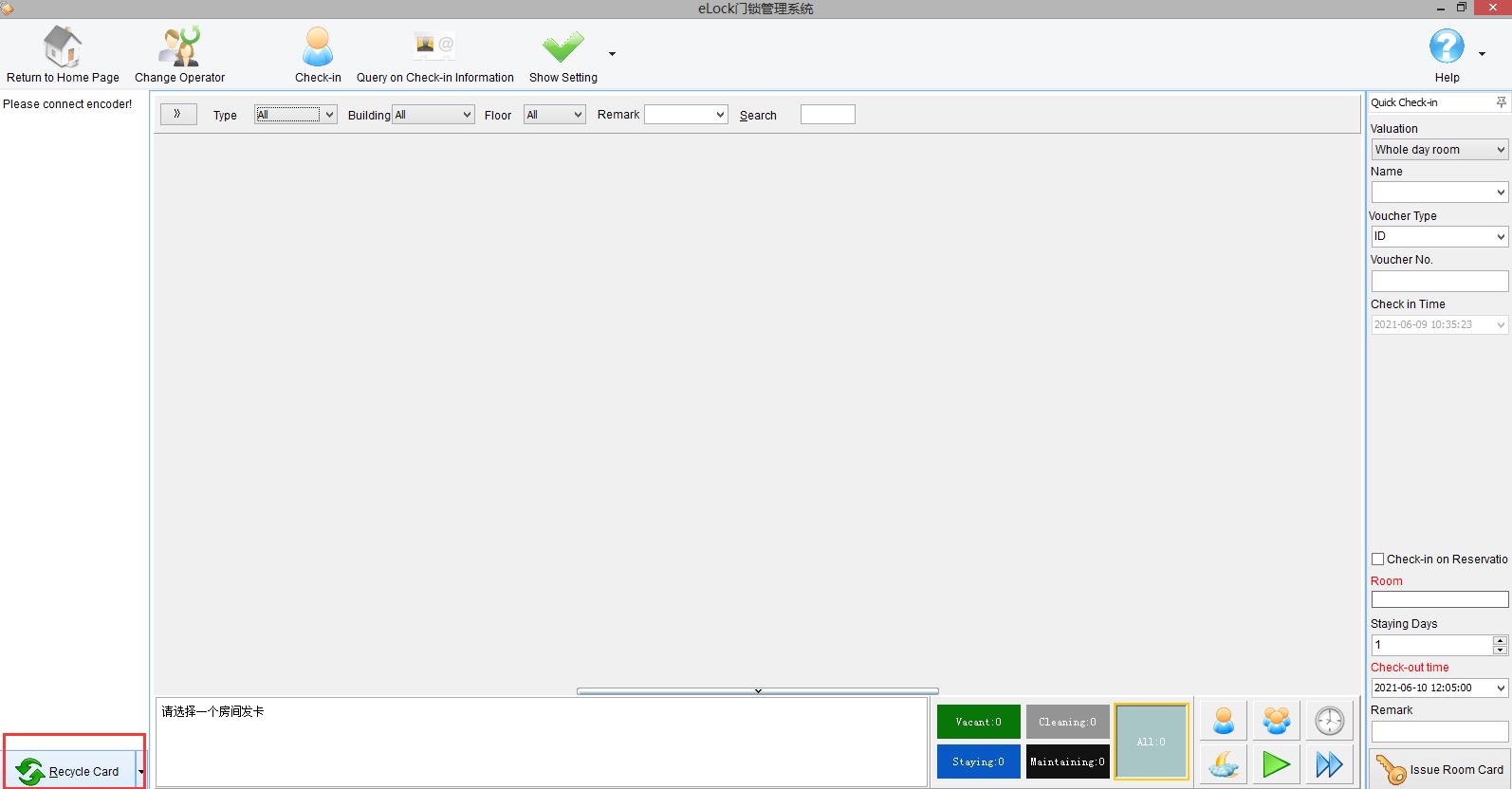
Place at the reception desk. Connect to the PC with the supplied USB cable. No extra driver installation is normally required.
Energy-Saving Switch (optional)
Installed inside each guest room. Insert the room card to restore room power.
Lock Management Handset (optional)
Used to initialize locks and download lock event records more conveniently.
Quick Start Concept
After the software is ready and you have issued a room card, each physical lock must be assigned its own room number.
That assignment is done on the lock itself by swiping the Authorized Card and then the Room Card
(see Sections 10–11). Every door gets a different room number because each lock is installed on a different room.
Skip this section if you can already log in and use the software normally.
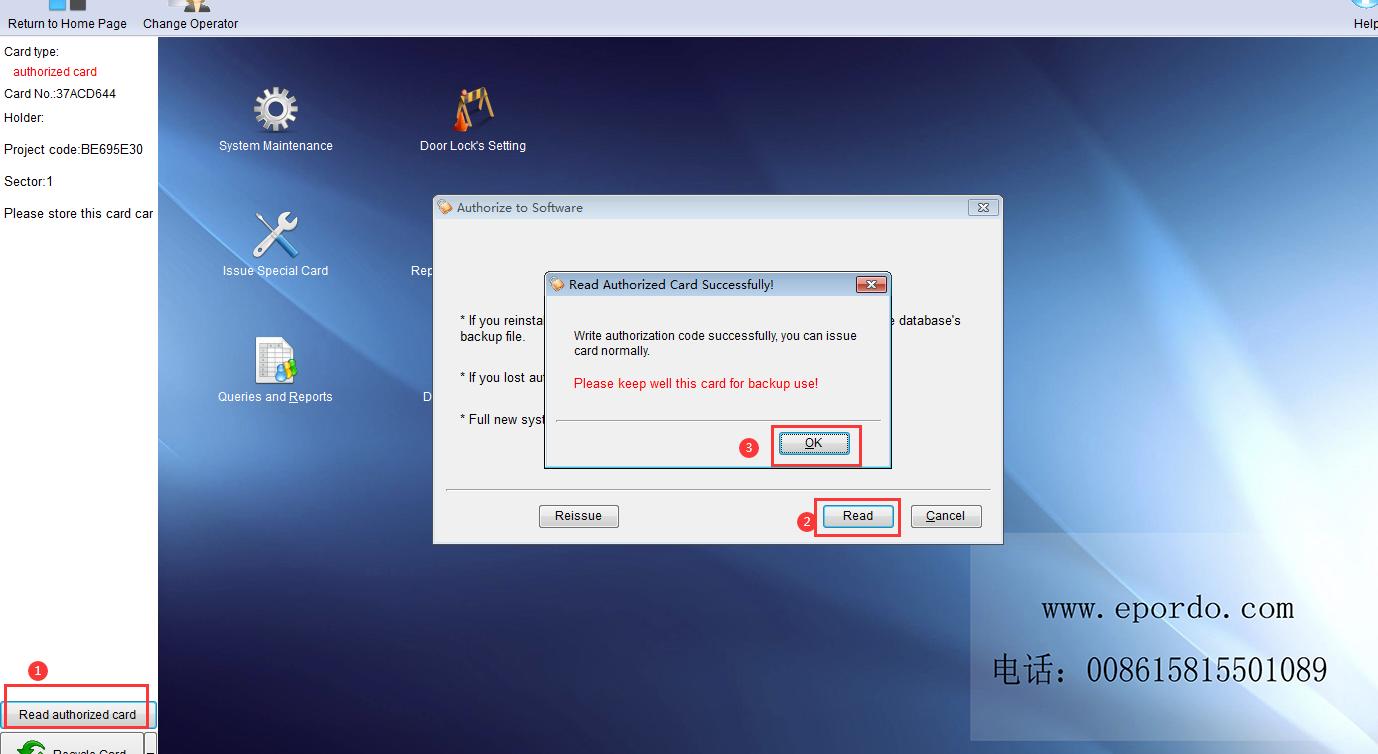
Registration is only needed when the encoder/software requires activation. If you are already logged in, go directly to Section 6 — Read Authorized Card.
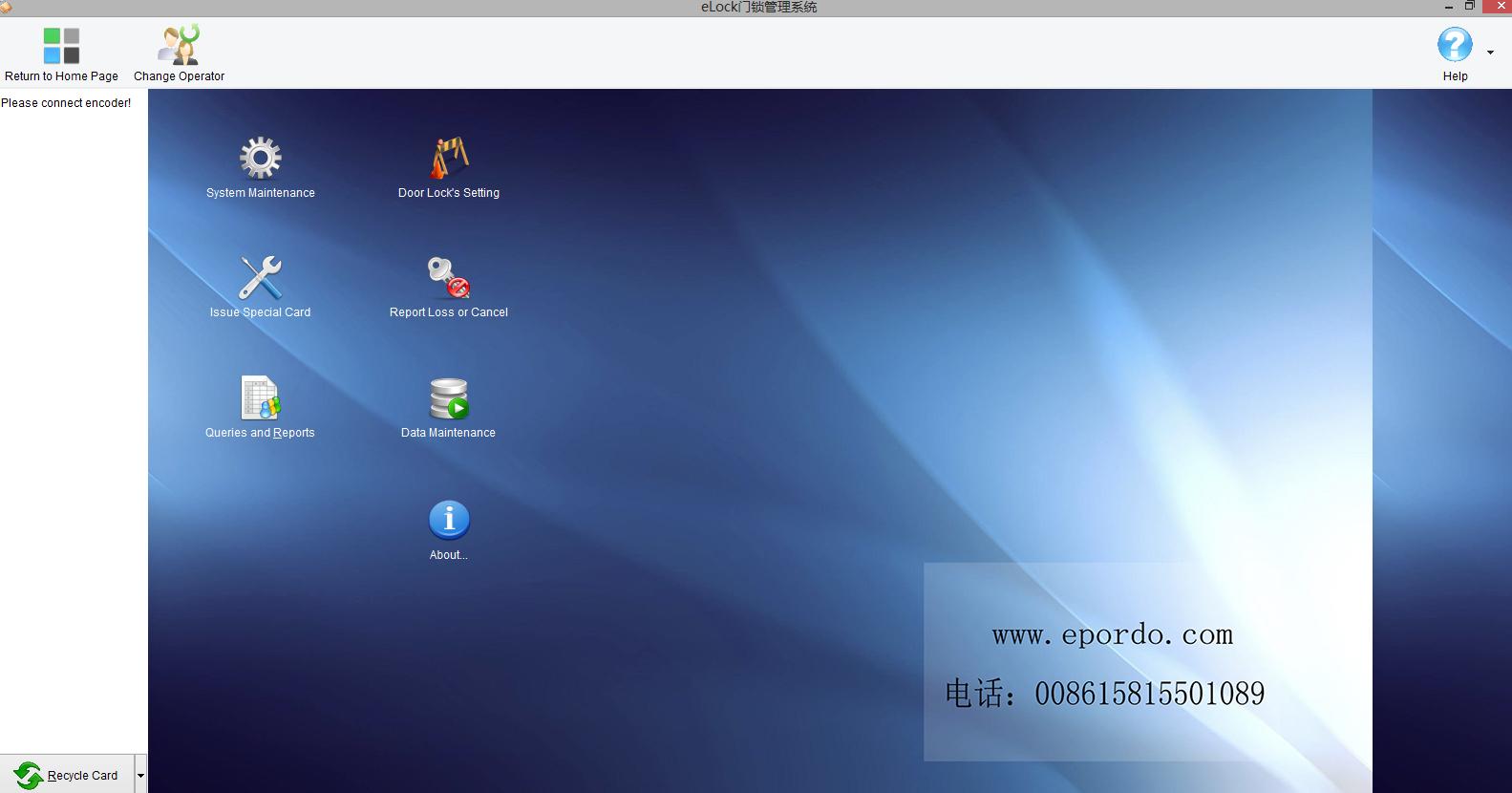
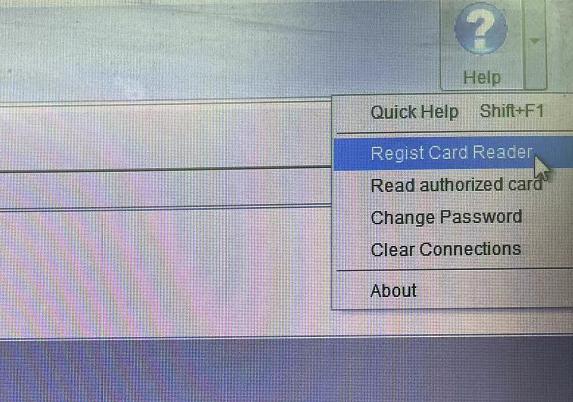
On the main screen, open the Help menu.
Select Regist Card Reader (as shown in the software menu).
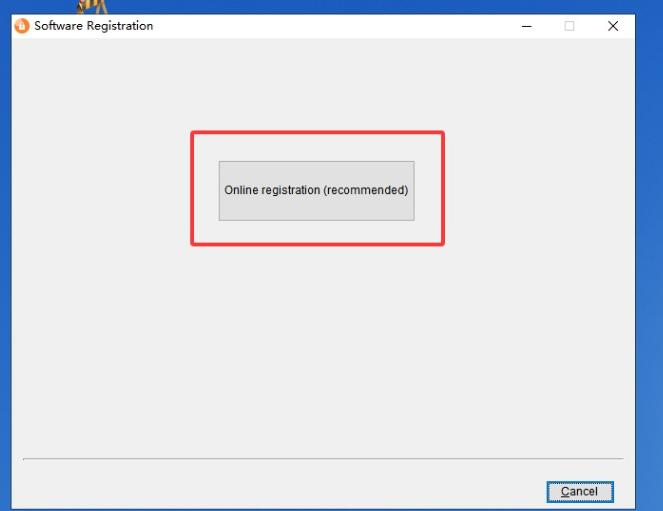
In the registration dialog, click Online registration (recommended).
If you need assistance with software registration, contact us on WhatsApp: 0086 18665332487.
Need Help with Software Registration?
For software registration assistance, please contact WhatsApp: 0086 18665332487.
Figure 3 — Help menu: Regist Card Reader / Read authorized card.Figure 4 — Click Online registration (recommended). Contact EPORDO support if needed.
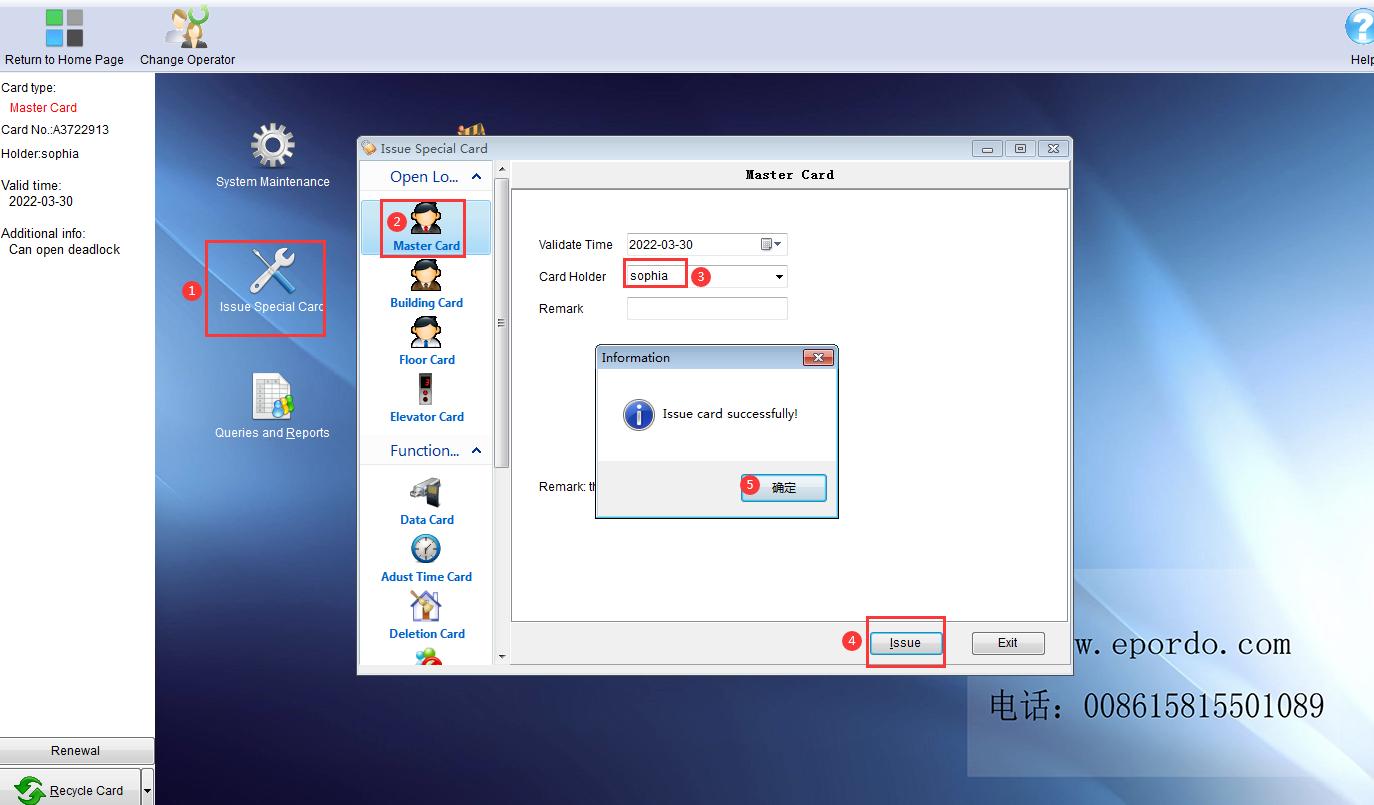
After a successful issue, you may swipe the Master Card on an initialized lock to verify that it opens.
Shenzhen EPORDO Co., LtdSection 8 — Hotel Information Setup
8. Set Hotel Information
Configure room types, buildings, areas, and individual rooms under The Setting of Rooms
(usually accessed via System Maintenance / Door Lock’s Setting, depending on your software layout).
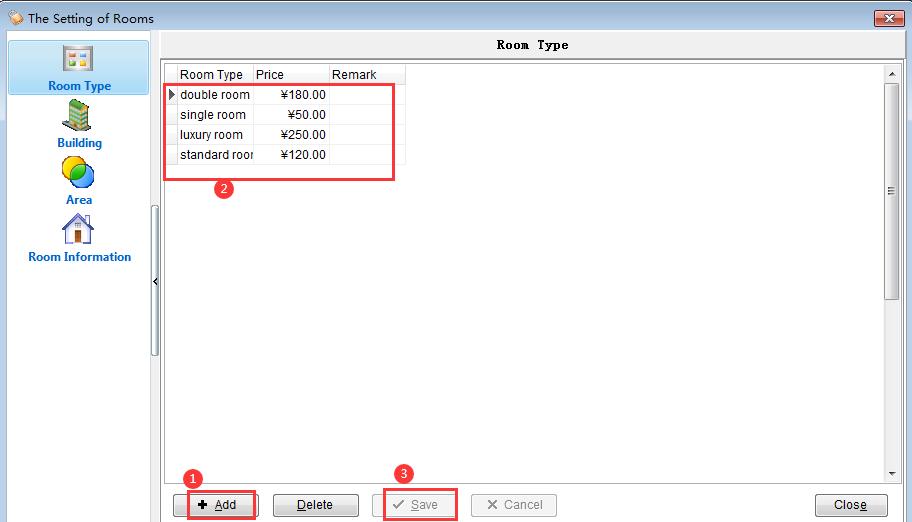
8.1 Room Type
Add, edit, or delete room types (for example: single, double, luxury). Set price and remarks, then click Save.
Figure 7 — Room Type: Add → enter details → Save.
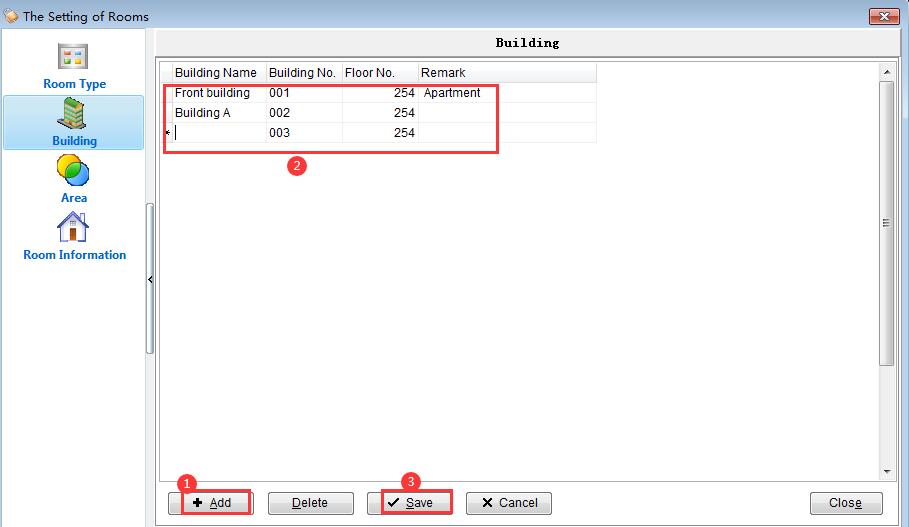
8.2 Building Information
Set building name, building number, and number of floors, then click Save.
Figure 8 — Building: Add → enter building data → Save.
Shenzhen EPORDO Co., LtdSection 8 — Hotel Information Setup (continued)
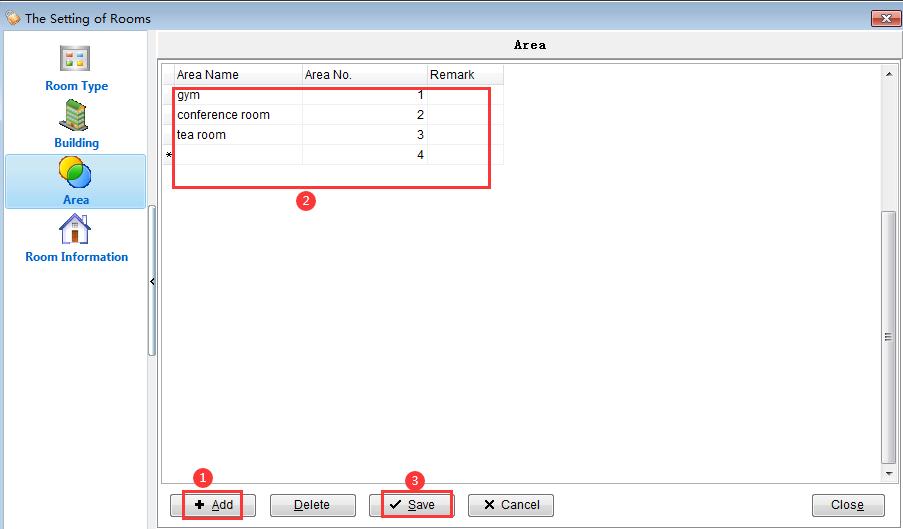
8.3 Area Information
Define public or special areas (for example: gym, conference room, tea room).
Figure 9 — Area: Add → enter area name/number → Save.
8.4 Room Information
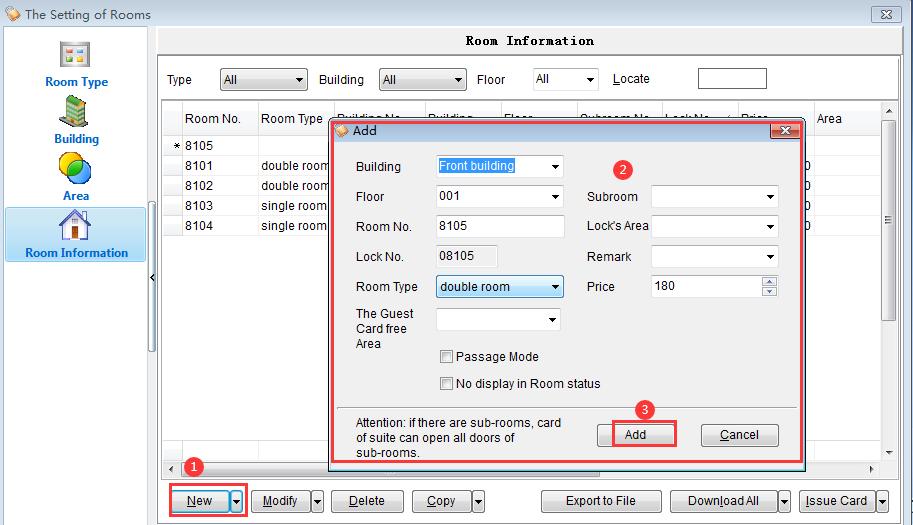
Create each guest room record with room number, lock number, room type, building, floor, and price.
Procedure
Open Room Information.
Click New.
Fill in Building, Floor, Room No., Lock No., Room Type, Price, and other fields.
Click Add to save the room.
Figure 10 — Room Information: New → fill fields → Add.
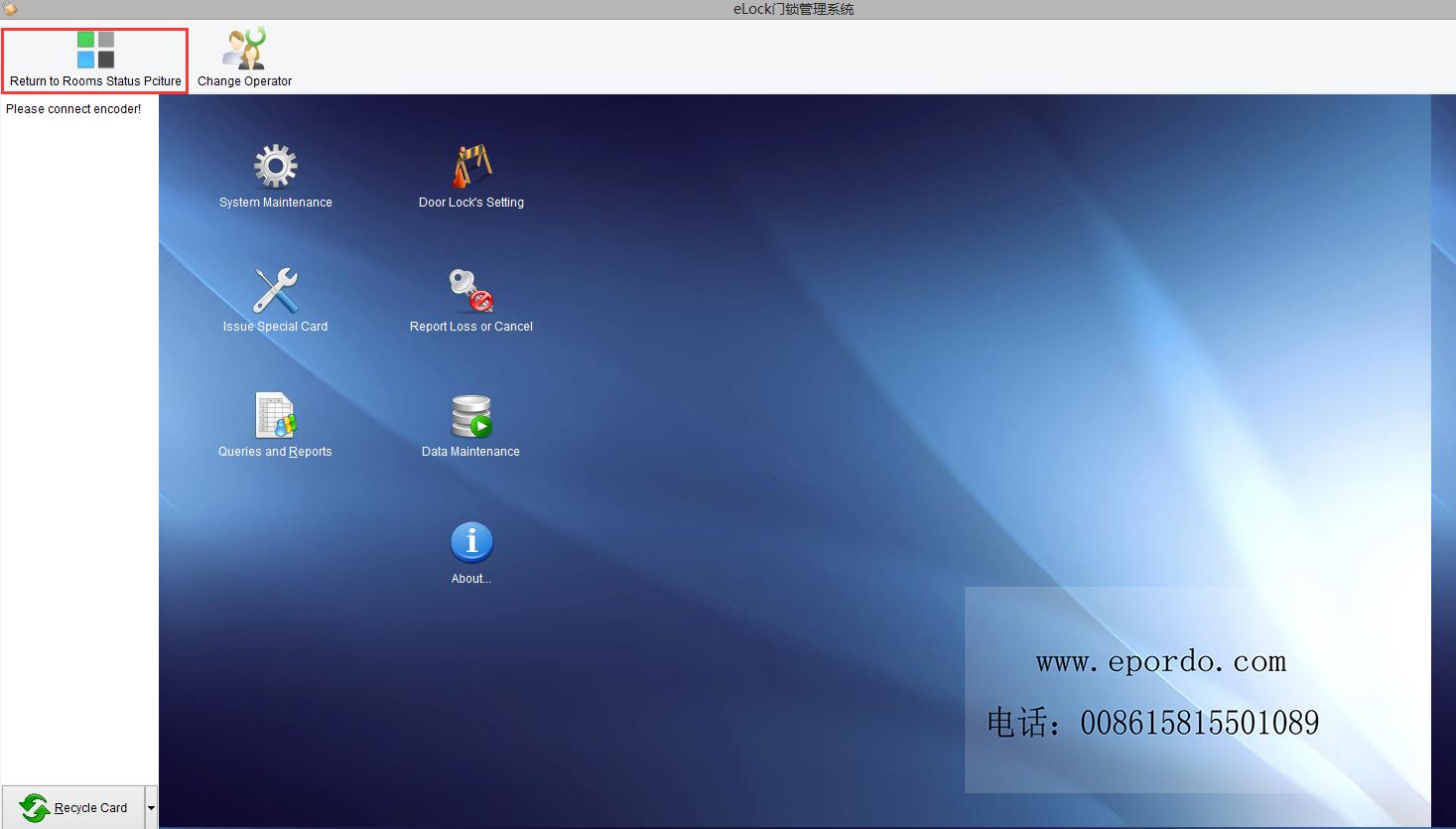
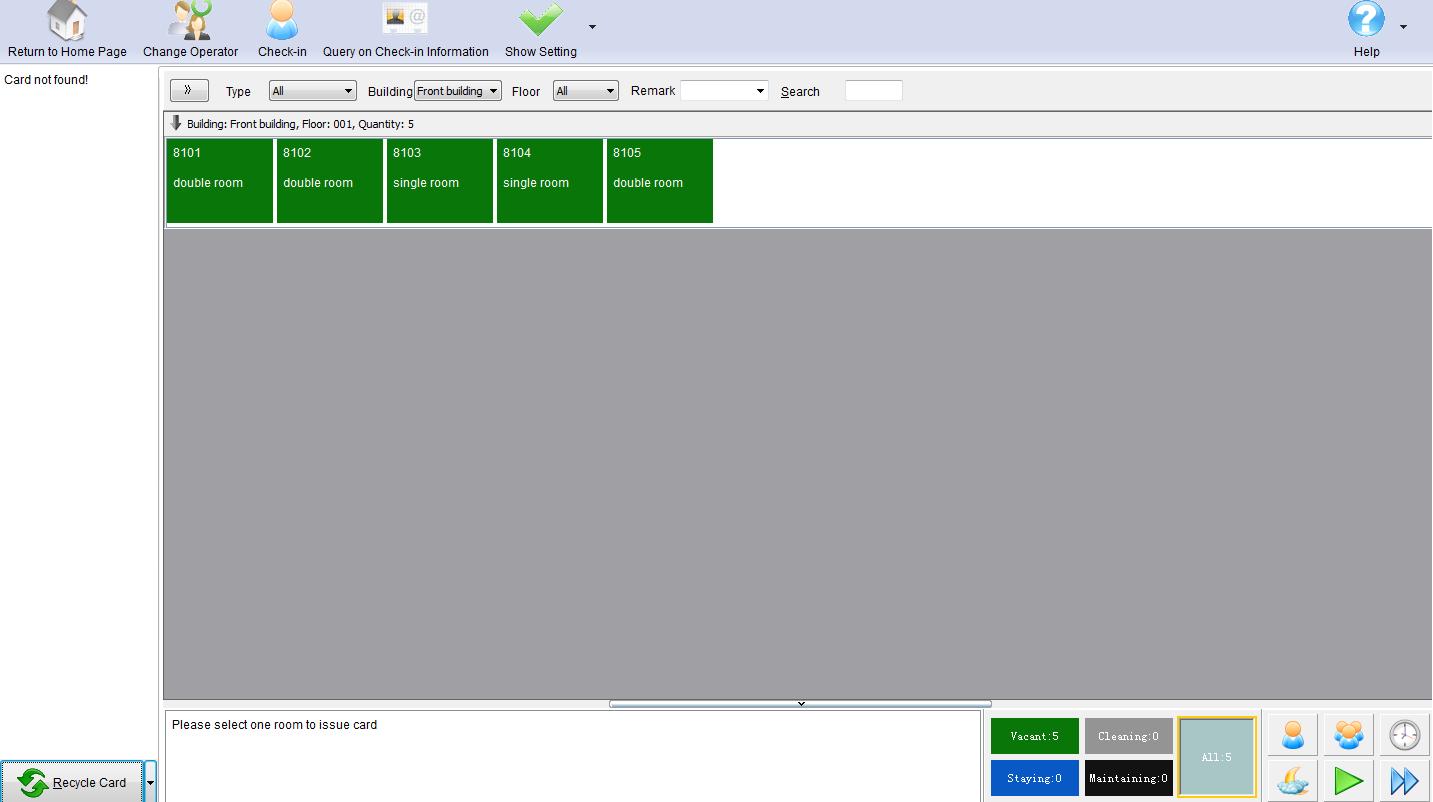
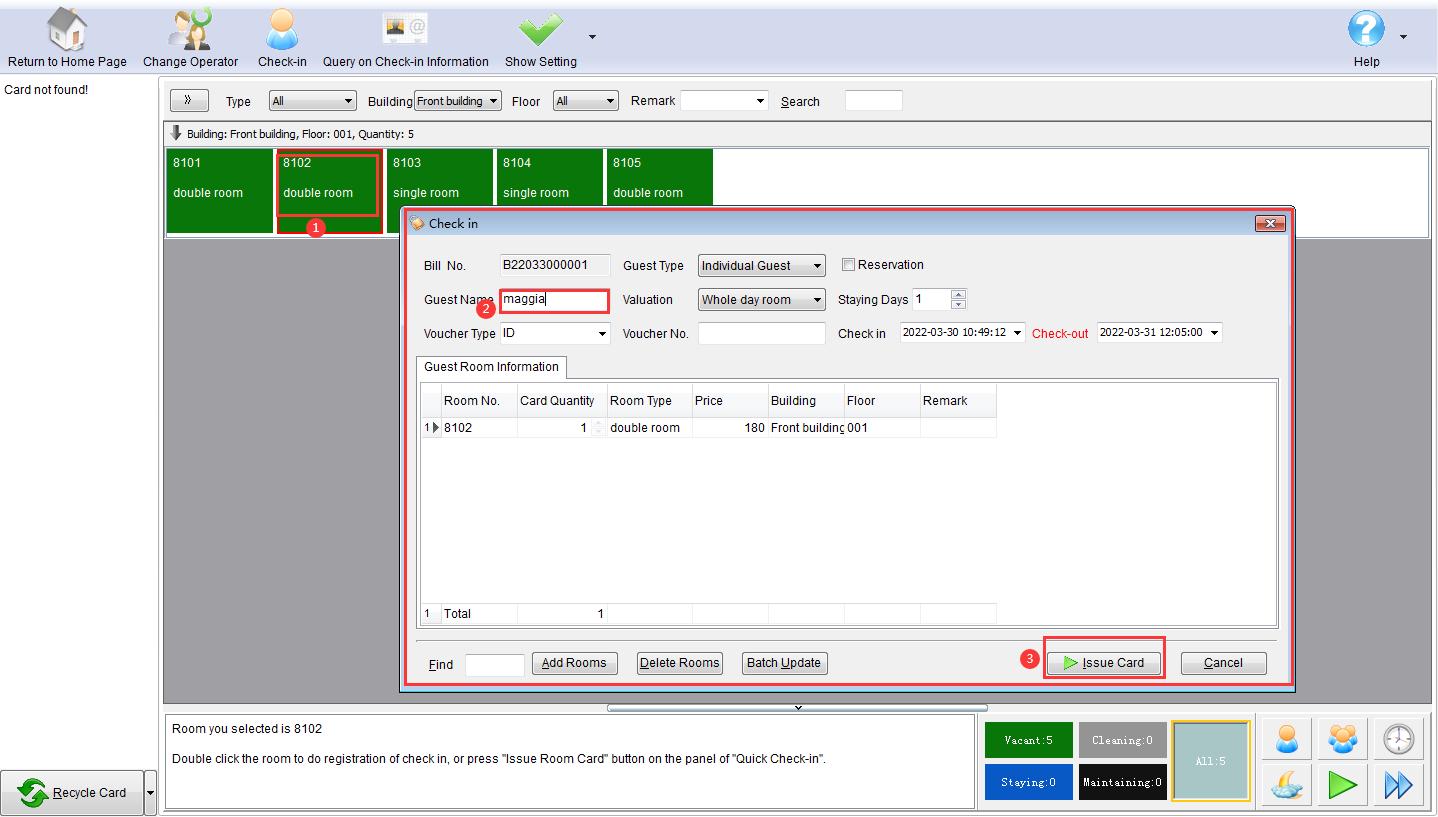
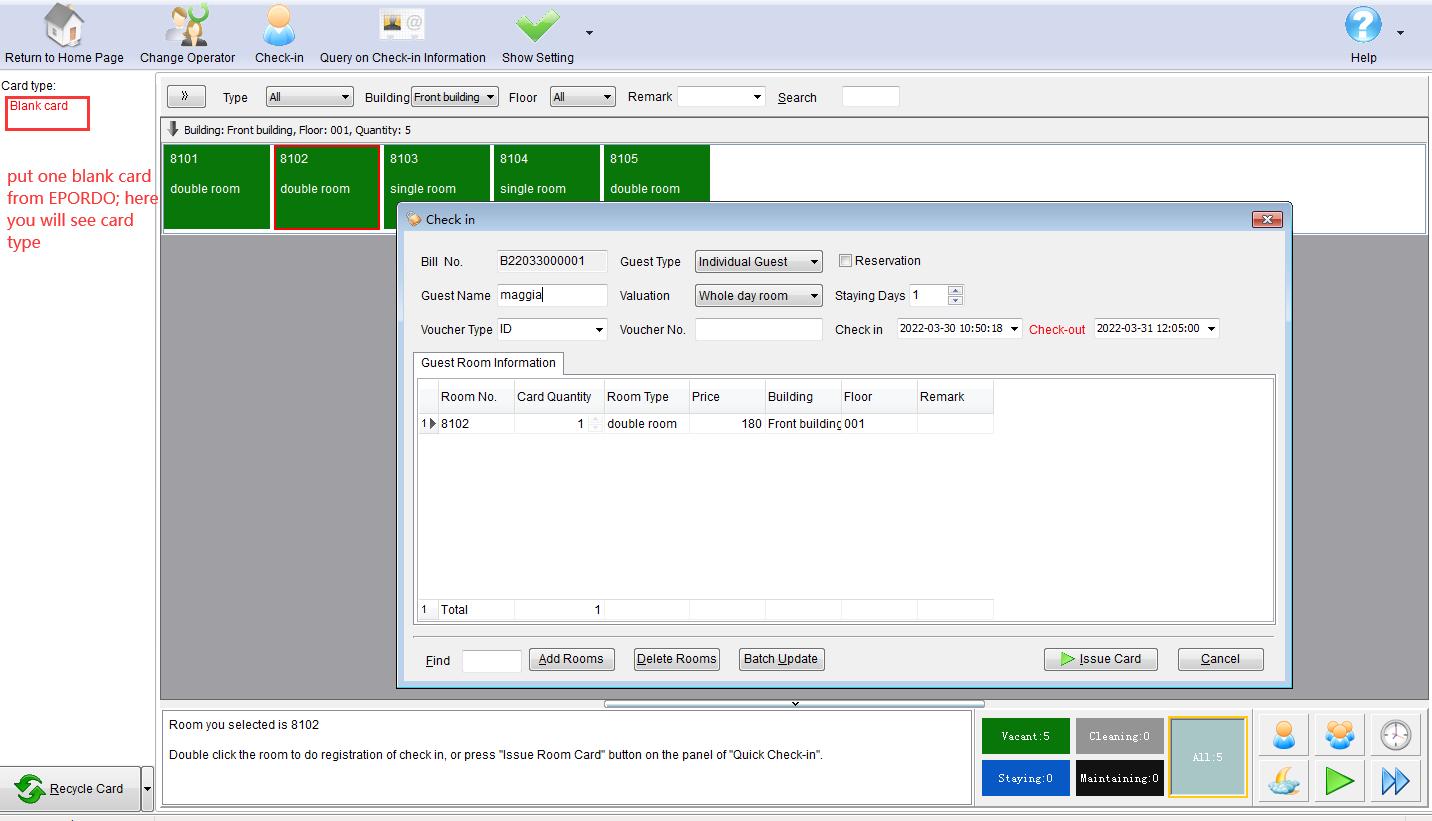
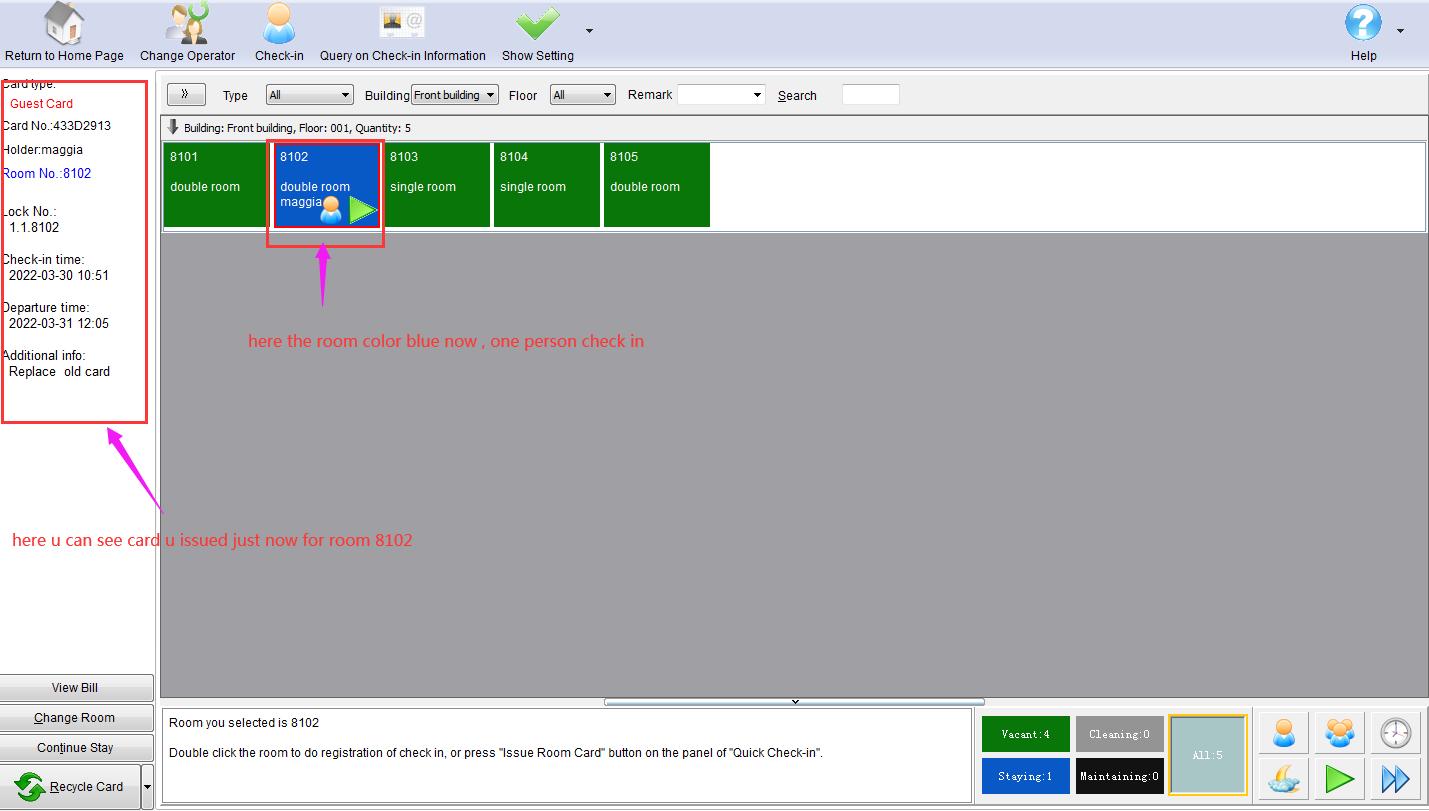
Return to the room status screen to check in a guest and issue a room card.
Figure 11 — Click “Return to Rooms Status Picture” to open the room board.Figure 12 — Room status board (green = vacant). Select a room to issue a card.
10. Initialize the Lock (Write Room Number into the Lock)
Software setup alone is not enough. Each physical lock must receive its room number.
Install 4 × AA batteries, connect the cylinder and front cover, then initialize as follows.
First-Time Setup — Swipe Authorized Card ONLY ONCE
When the guest receives a brand-new hotel lock (never programmed before),
swipe the Authorized Card only once, then swipe the Guest Room Card once.
The room number is then written into the lock. Do not swipe the Authorized Card repeatedly on a new lock.
Standard Initialization Sequence
Issue a Guest Room Card in the software (example: Room 101).
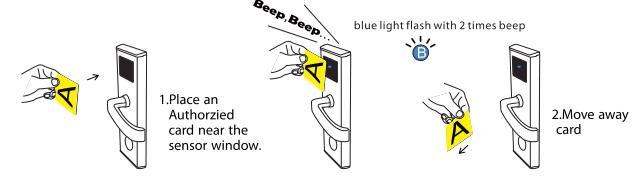
On the lock, swipe the Authorized Card once. Wait for blue light and “di-di”. The lock enters programming mode.
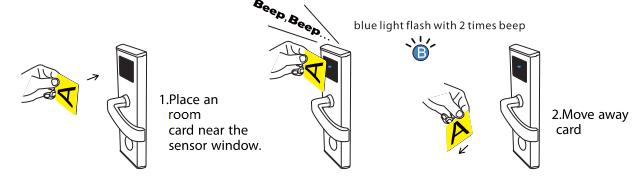
Within a short moment, swipe the Room Card once. Wait for blue light and “di-di”.
The lock now contains Room No. 101 (and related time data). Swipe the same Room Card again to open the lock and verify.
Figure 17 — Swipe Authorized Card once near the sensor window. Blue light flashes with two beeps.Figure 18 — Then swipe the Room Card once. Room number is written into the lock.
If a lock has already been authorized (for example, it already contains Room 101) and you need to erase that information
or assign a different room number, you must clear the lock first.
Already-Programmed Lock — Swipe Authorized Card THREE TIMES
To clear all information inside a lock that was previously programmed,
swipe the Authorized Card three times. After clearing, swipe the new Guest Room Card once
to write the new room number into the lock.
Clear & Reassign Sequence
Swipe the Authorized Card three times on the lock. Feedback: blue light + “di-di-di”. All data inside the lock is deleted.
The previous Room Card (for example, Room 101) can no longer open this lock.
Swipe the new Guest Room Card once (for example, Room 205).
The new room number is written into the lock. The new card can open it.
Situation
Authorized Card
Then
New lock, first programming
Swipe 1 time
Swipe Room Card 1 time → room No. written
Lock already has data; clear or change room No.
Swipe 3 times
Swipe new Room Card 1 time → new room No. written
Summary
Swipe Authorized Card × 1 = enter programming / authorize a new (empty) lock.
Swipe Authorized Card × 3 = delete all information inside the lock.
Never confuse these two operations. Using three swipes on a brand-new lock, or one swipe when you meant to clear data, will cause unexpected results.
Shenzhen EPORDO Co., LtdSection 12 — Force Authorization
12. Force Authorization (Fallback Method)
If the standard lock initialization fails, use Force Authorization.
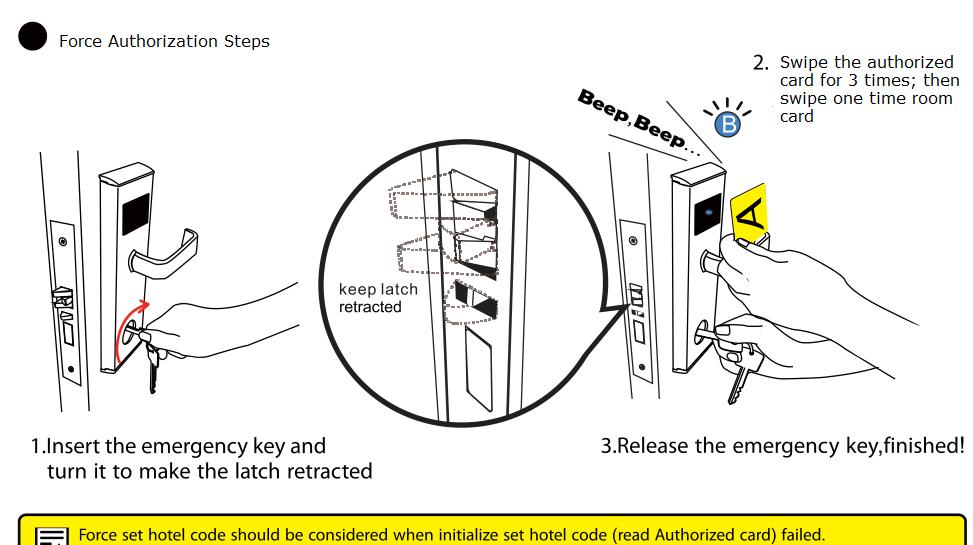
This method should be considered when initializing / setting the hotel code (after reading the Authorized Card) has failed.
Force Authorization Steps
Insert the emergency key and turn it to keep the latch retracted.
Swipe the Authorized Card 3 times, then swipe the Room Card 1 time.
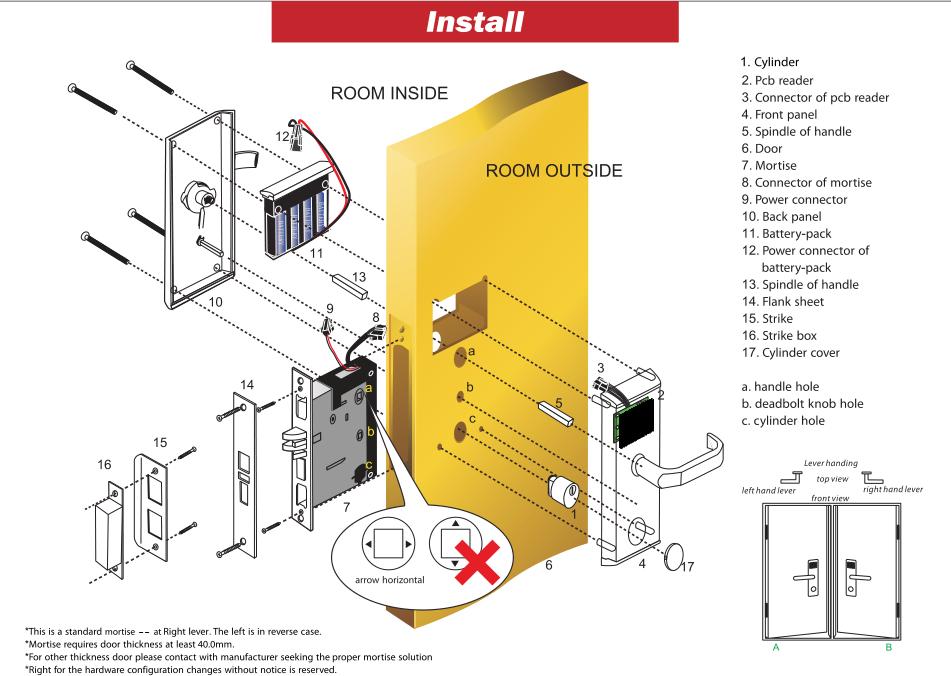
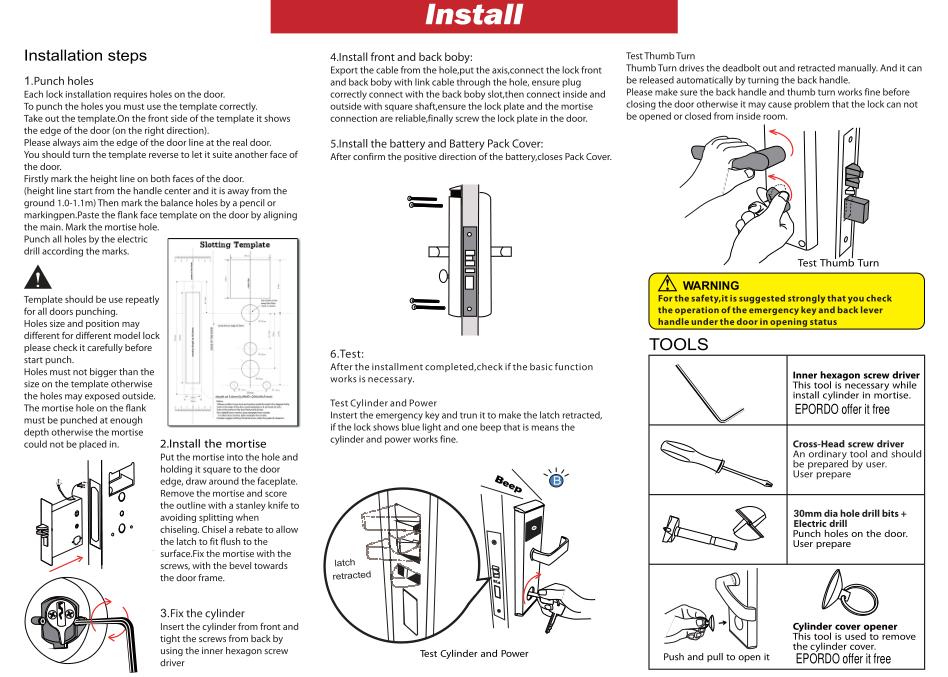
Punch holes — Use the slotting template. Recommended handle height: 1.0–1.1 m from the floor.
Install the mortise — Seat the mortise, score the door edge if needed, and fasten with screws (bevel toward the door frame).
Fix the cylinder — Insert the cylinder and tighten with the inner hexagon screwdriver.
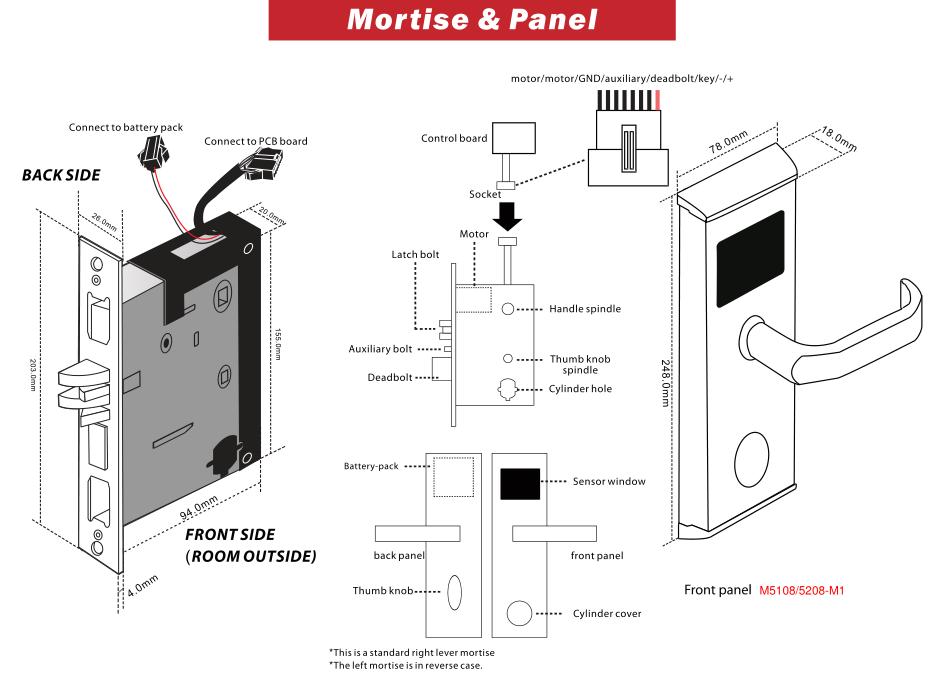
Install front and back body — Route cables carefully, connect with the link cable, insert the square shaft, and secure both panels.
Install batteries — Confirm polarity, insert the battery pack, and close the cover.
Test — With the door open, test the emergency key and thumb turn. A successful test shows a blue light and one beep.
WARNING
Always verify the emergency key and the interior lever while the door is still open,
to avoid being locked out during installation.
Figure 22 — Detailed install steps, test procedure, and tools list (tools marked “EPORDO offer it free” are supplied by Shenzhen EPORDO Co., Ltd).
Shenzhen EPORDO Co., LtdSection 14 — Technical Support
14. Technical Support & Contact
If you have any questions about software operation, card issuance, lock initialization, or hardware installation,
please contact us. We are happy to assist overseas customers.
Shenzhen EPORDO Co., Ltd
Room 411, GuoShengJinXingLianChuangShiDai, LongHua District, Shenzhen, China