 Cloud Attendance · 2026
Normal Shift Setting Guide
How to set a standard company shift (Monday–Friday), including work hours and valid punch windows. Most “report is empty / software is broken” cases happen because employees punch outside the valid time window.
Work time and valid punch time are different. Only punches inside the valid window are recorded as IN / OUT and used in attendance reports. Early or late punches outside the window still appear under Attendance records, but they will not generate normal IN/OUT for the report.
1. What you will set
One shift can have one or two sections (time blocks) per day.
Two sections (this guide)
Morning + afternoon — e.g. 08:00–12:00 and 12:30–16:30. Use Workday = half a day for each section.
One section (alternative)
Single continuous day — e.g. 09:00–17:00. Use Workday = one day.
Open: Cloud attendance → personnel attendance → shift manage → depart shift assign. The dialog below is where you build the weekly schedule.
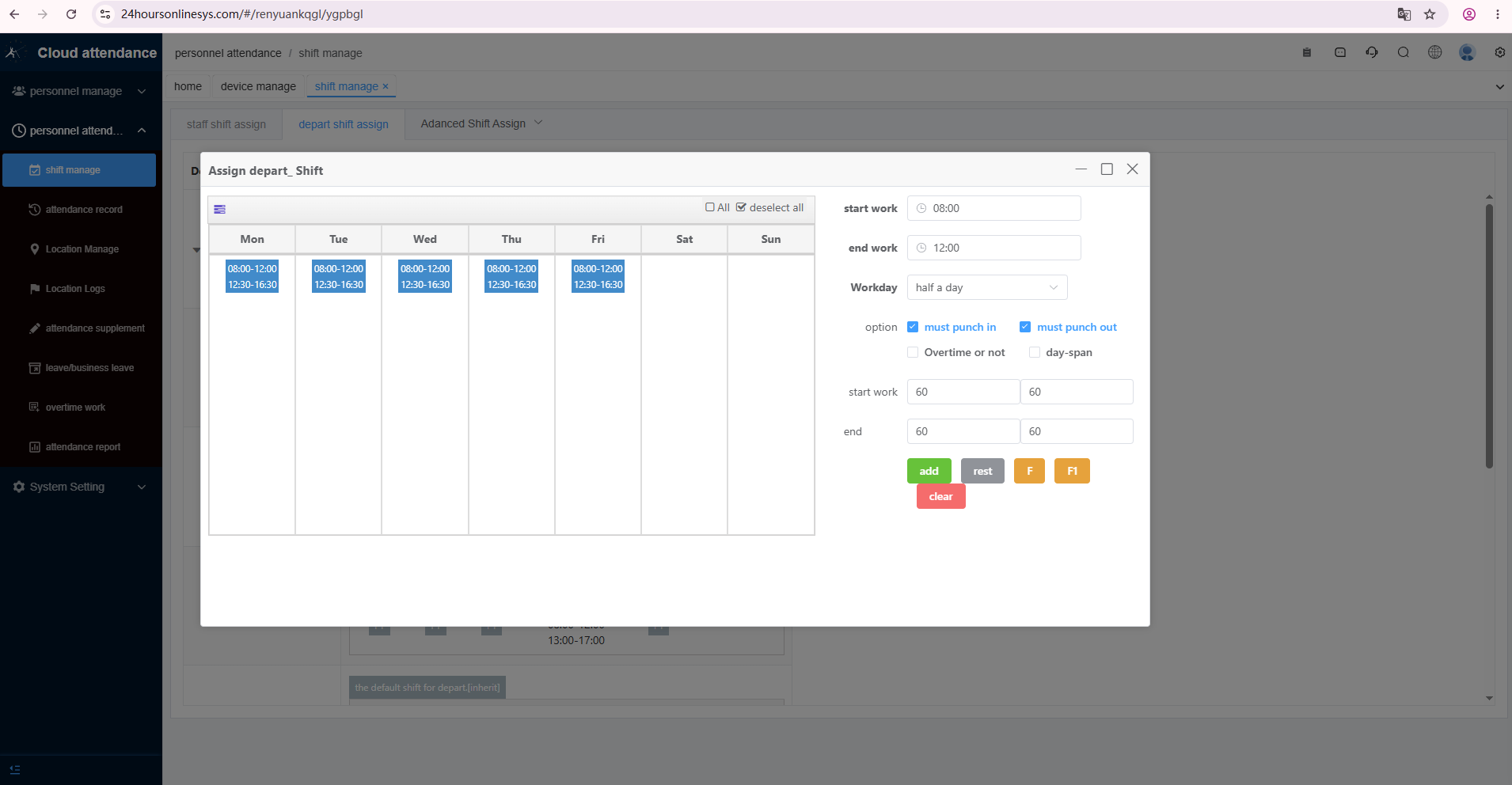
Screenshot: Mon–Fri already show two blue blocks (morning + afternoon). Sat / Sun empty = rest days.
2. Example used in this guide
| Item | Setting |
|---|---|
| Workdays | Monday – Friday (select the day columns first) |
| Morning section | Start work 08:00 · End work 12:00 · Workday = half a day |
| Afternoon section | Start work 12:30 · End work 16:30 · Workday = half a day |
| Must punch in / out | Both checked ✔ |
| Overtime or not | Unchecked (company does not calculate overtime here) |
| Day-span | Unchecked (shift does not cross midnight — ~90% of companies) |
| Valid punch (default) | start work 60 — 60 · end 60 — 60 (minutes) |
3. The whole process (remember this)
Select workdays → set work time → set options → set valid punch time → click green Add.
First configure the morning block and click add. Then change the times to the afternoon block and click add again (with the same workdays still selected).
4. Step 1 — Start work / End work
This pair defines the official working hours for one section.
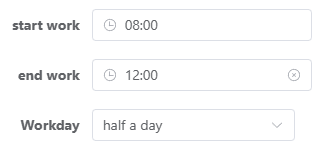
Step 1 screenshot: morning section 08:00–12:00, Workday = half a day.
- start work — official clock-in / start time (example: 08:00).
- end work — official clock-out / end time (example: 12:00).
- Workday — half a day for morning or afternoon sections; one day if you only set one full-day block (e.g. 09:00–17:00).
5. Step 2 — Option checkboxes
For a normal office / factory shift, check only the punch requirements.
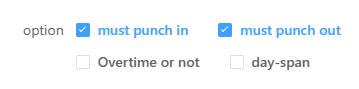
Step 2 screenshot: must punch in ✔ · must punch out ✔ · Overtime off · day-span off.
| Option | Meaning | This example |
|---|---|---|
| must punch in | Employee must punch in for this section | ✔ Required |
| must punch out | Employee must punch out for this section | ✔ Required |
| Overtime or not | Whether this section is treated as overtime calculation | Leave unchecked if company does not calculate OT here |
| day-span | Shift crosses midnight (e.g. 17:00 today → 05:00 tomorrow) | Leave unchecked for normal daytime shifts |
6. Step 3 — Valid punch time (most important)
Software default is 60 — 60 (minutes before — minutes after). You may change these values freely.
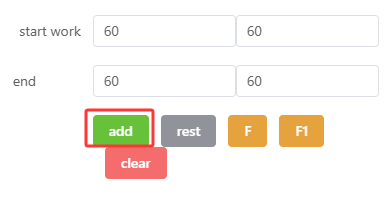
Step 3 screenshot: valid windows 60—60, then click the green add button.
start work 60 — 60
For start time 08:00, 60 — 60 means a punch is valid from 07:00 to 09:00 (1 hour before and 1 hour after).
- Want 07:00–10:00? Set 60 — 120 (1 hour early, 2 hours late).
- Punch at 06:55 is outside the window → not used as official IN for the report; it only appears under Attendance records.
end 60 — 60
For end time 12:00, 60 — 60 means valid punch-out from 11:00 to 13:00. Same rule for the afternoon end time.
Many users set the shift correctly, then employees punch at random times. If the punch is outside the valid window, the system will not treat it as IN/OUT for attendance calculation. This is expected behavior — not a software fault. Always publish both work times and valid punch windows to staff.
7. Step 4 — Click the green Add button
After workdays, work hours, options, and valid windows are set, click add to write that section onto the selected days.
- Select Mon–Fri on the calendar.
- Set morning 08:00–12:00 → options → 60—60 → add.
- Keep Mon–Fri selected → set afternoon 12:30–16:30 → options → 60—60 → add.
- Confirm blue blocks appear on Mon–Fri, then save / close the dialog as usual.
Select workdays + set work time + set valid punch time + click Add = shift setup complete.
8. Valid punch window chart (example)
With default 60 — 60 minutes. Share this table with employees.
| Section | Work time | Valid IN window | Valid OUT window |
|---|---|---|---|
| Morning | 08:00 – 12:00 | 07:00 – 09:00 | 11:00 – 13:00 |
| Afternoon | 12:30 – 16:30 | 11:30 – 13:30 | 15:30 – 17:30 |
- Punch inside the window → recorded as IN / OUT → used in attendance report
- Punch outside the window → still listed in Attendance records → not counted as normal IN / OUT
- If you change 60—60, recalculate the windows and tell employees again
9. Common mistakes (FAQ for support)
“I punched, but the report has no data”
Check the punch time against the valid window. Example: start 08:00 with 60—60 → punch at 06:55 is too early. Look under Attendance records — the raw punch is there, but it is not an official IN for the shift.
“We only need one time block per day”
Set one section only, e.g. start 09:00 / end 17:00, Workday = one day, then Add once for Mon–Fri.
“Do we need day-span?”
Only if the shift crosses 00:00 midnight. Normal 08:00–16:30 daytime work: leave it off.
“Do we need Overtime or not?”
Check it only when this section should be included in overtime calculation. For a plain regular shift explanation, leave it unchecked.