Companion guide
Shift Types Explained Simply
Choose the right shift style before go-live. Wrong shift settings are the #1 cause of “report looks wrong”.
1. Fixed shift (normal office / factory)
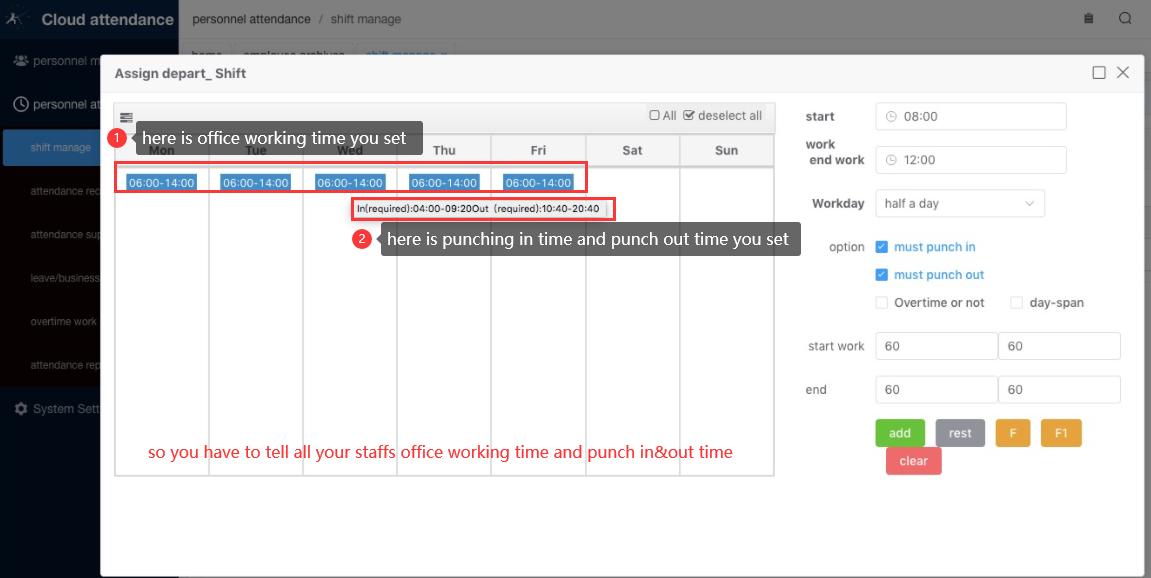
Use when staff have a known start and end time every day.
| Item | Example | Purpose |
|---|---|---|
| Shift time | 08:00 – 17:00 | Official working hours; late/early calculation |
| Punch-in window | 07:00 – 09:00 | When IN punch is accepted |
| Punch-out window | 16:00 – 20:00 | When OUT punch is accepted |
| Options | must punch in + must punch out | Usually both ON |
Tell employees both times
If someone punches outside the punch window, the record may not become a valid IN/OUT for the report.
How to set (recommended)
- Personnel attendance → Shift manage → Depart shift assign
- Select dates (Mon–Fri…)
- Set start work / end work
- Enable must punch in & must punch out
- Set buffer minutes (e.g. 60 before / after)
- Click add then Save
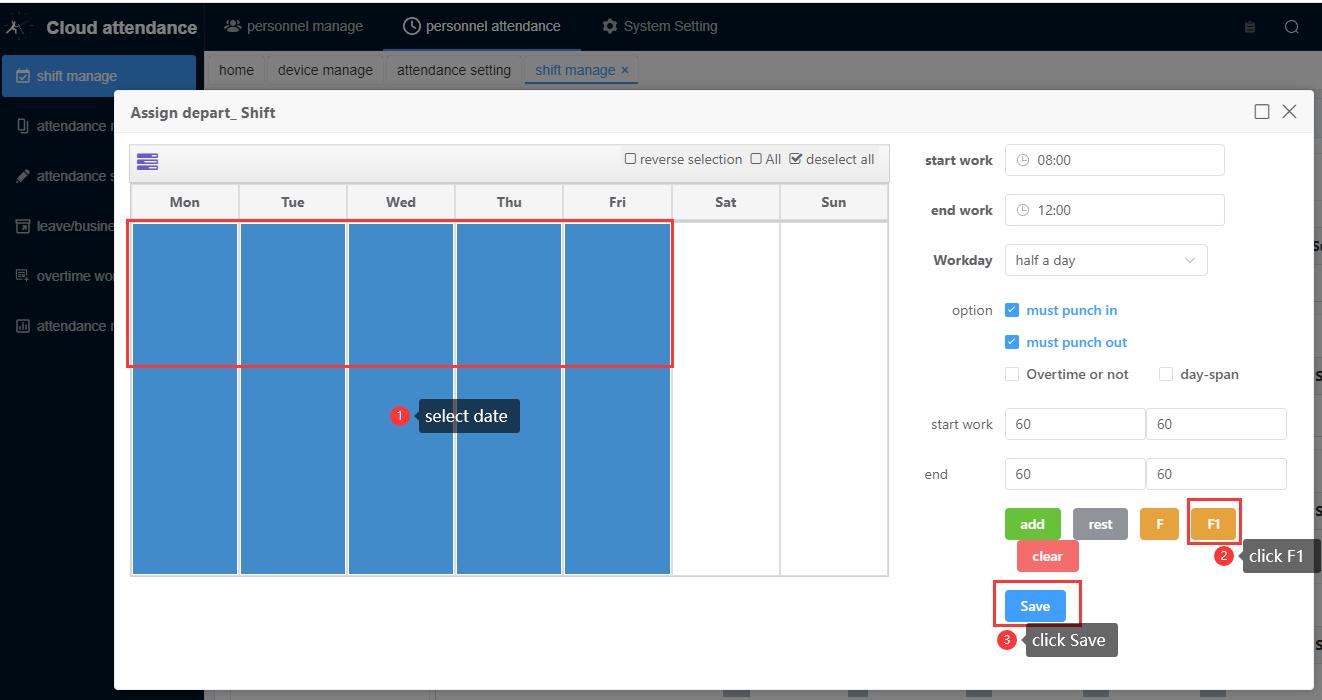
2. F1 — Free shift (first & last punch)
No fixed office hours. Best for flexible teams.
How it calculates
1st verification of the day = IN
Last verification of the day = OUT
Work hours = OUT − IN
How to set
Select date(s) → click orange F1 → Save. No need to fill fixed start/end times.
3. F — Free shift (up to 4 In/Out pairs)
Also no fixed hours. Allows multiple entries and exits in one day.
| Punch order | Treated as |
|---|---|
| 1st | IN |
| 2nd | OUT |
| 3rd | IN |
| 4th | OUT |
| … up to 4 pairs | Max 4 In/Out pairs per day |
Steps: select date(s) → click F → Save.
4. Which one should I choose?
| Situation | Choose |
|---|---|
| Office 9–18, need late/early stats | Fixed shift |
| Flexible start, only care total hours (1 arrive + 1 leave) | F1 |
| Drivers / field staff leave & return many times | F |
| Mixed departments | Set different rules per department |
After changing shifts later
If you change shift or punch windows after the system has been used for a while,
open Attendance report and click Regen all daily / generate reports again.